Introducing the Hybrid Browser Toolkit: Faster, Smarter Web Automation for MCP
All you need to know about the Hybrid browser toolkit
October 2, 2025|32 min read
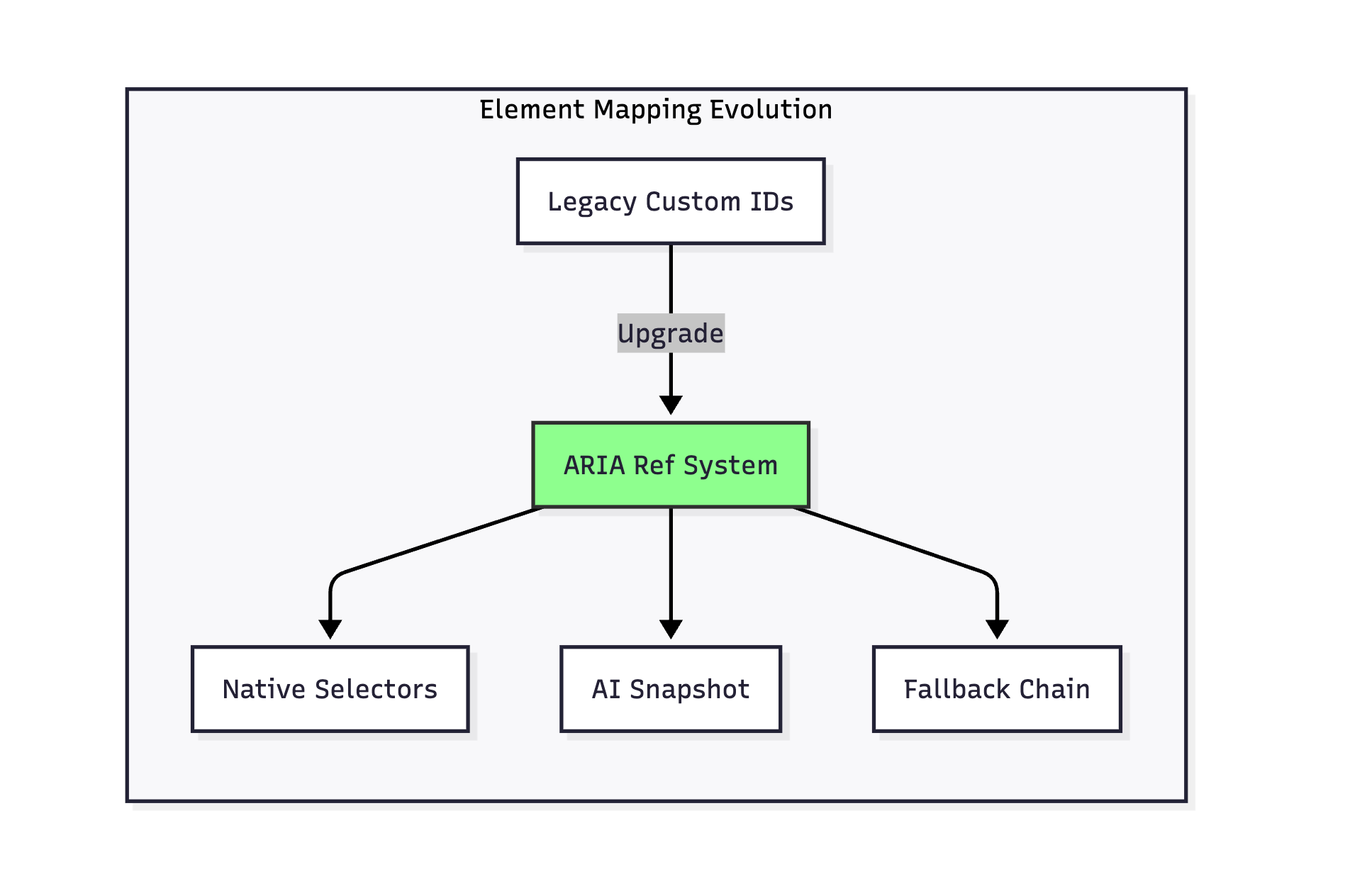
If you've been working with our original Camel BrowserToolkit, you might have noticed a pattern: it got the job done but had some limitations. It operated mainly by taking screenshots and injecting custom IDs into pages to find elements. It was a single-mode, monolithic Python setup that worked for basic tasks, but we knew we could do better. The screenshot-based approach meant you were essentially teaching an AI to click on pictures, which worked but felt a bit like using a smartphone with thick gloves on. Plus, the quality of those visual snapshots wasn't always great, and you couldn't easily access the underlying page structure when you needed it.
Enter the Hybrid Browser Toolkit
That's where our new Hybrid Browser Toolkit comes in. We've rebuilt everything from the ground up using a TypeScript-Python architecture that gives you the best of both worlds. Why TypeScript? It's not just about Playwright's native AI-friendly snapshot features – TypeScript is fundamentally better suited for efficient browser operations with its event-driven nature, native async/await support, and direct access to browser APIs without the overhead of language bridges. The TypeScript server handles all the heavy lifting of browser control while Python provides the familiar interface you love. But we didn't stop there. We've added support for CDP (Chrome DevTools Protocol) mode to connect to existing browser instances, and MCP (Model Context Protocol) integration for enhanced AI agent capabilities. You're not just limited to visual operations anymore – now you can seamlessly switch between visual and text-based interactions, access detailed DOM information, and enjoy snapshots that are crisp, accurate, and actually make sense. We've obsessed over the details too, from better element detection to smarter action handling, making the whole experience feel more natural and reliable. It's like upgrading from that smartphone-with-gloves setup to having direct, precise control over everything you need to do in a browser.
This chapter provides a comprehensive comparison between the legacy BrowserToolkit and the new HybridBrowserToolkit, highlighting the architectural improvements, new features, and enhanced capabilities.
Table of Contents
Architecture Evolution
Core Architectural Improvements
Multi-Mode Operation System
TypeScript Framework Integration
Enhanced Element Identification
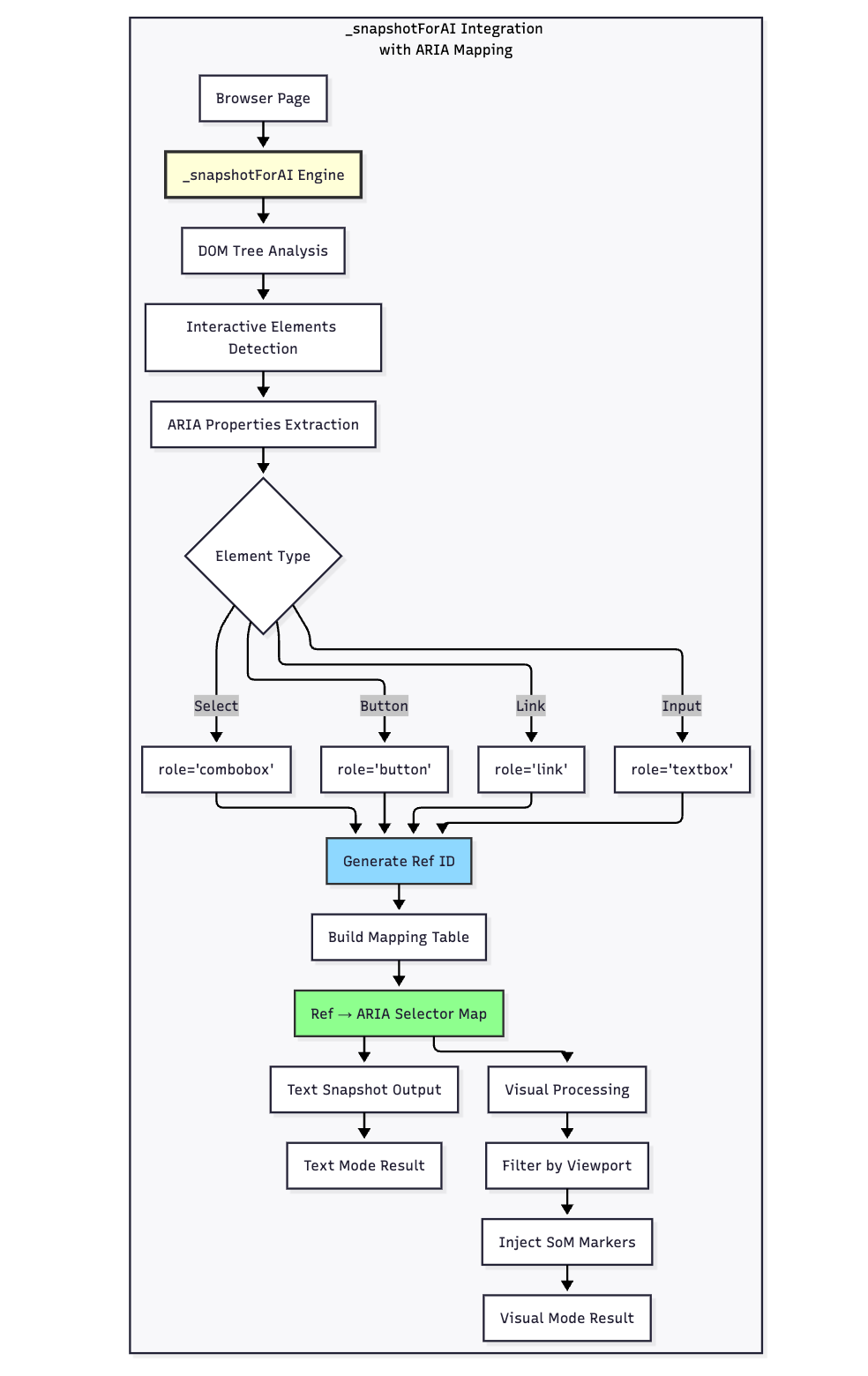
_snapshotForAI and ARIA Mapping Mechanism
Enhanced Stealth Mechanism
Tool Registration and Screenshot Handling
Architecture Evolution
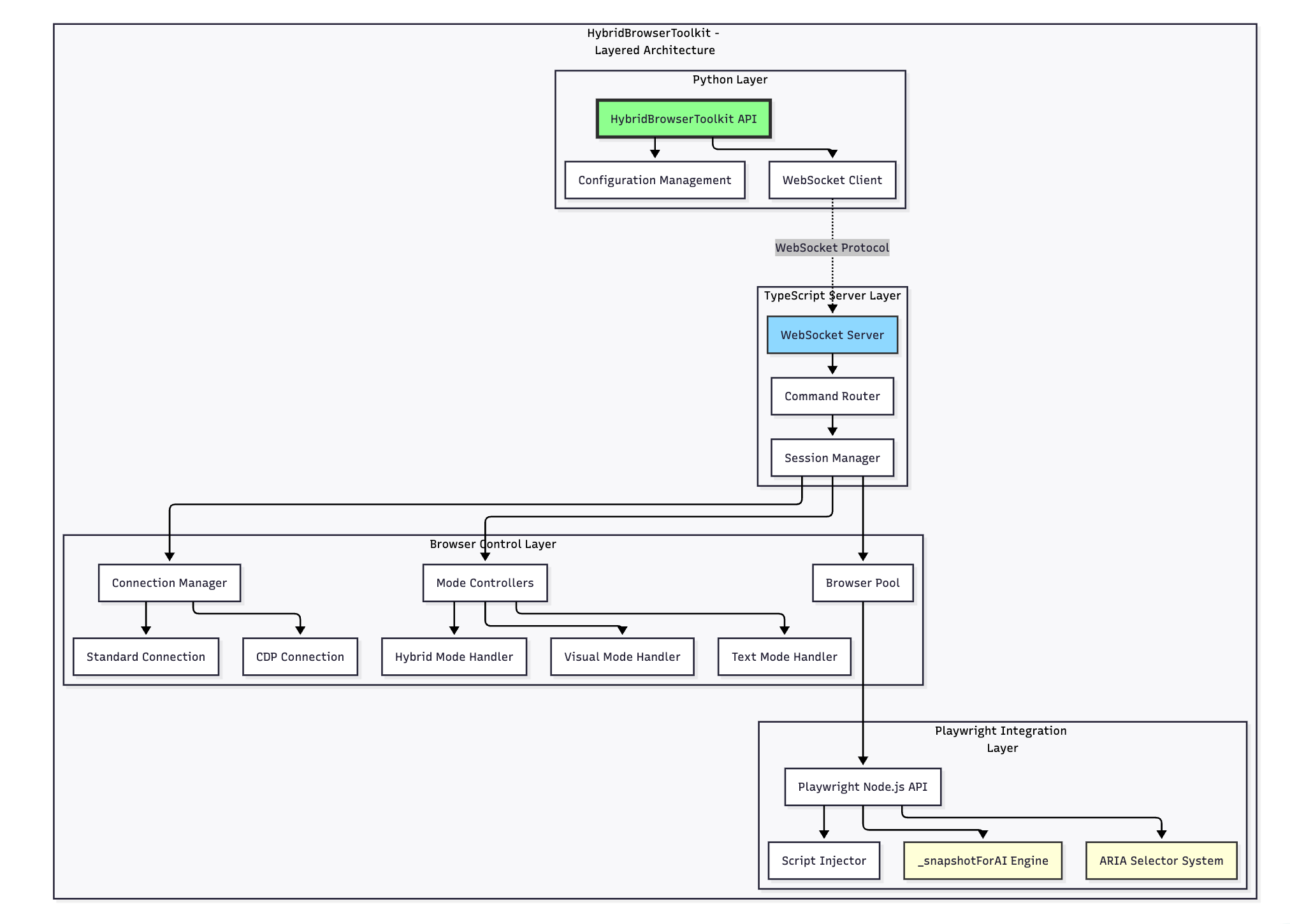
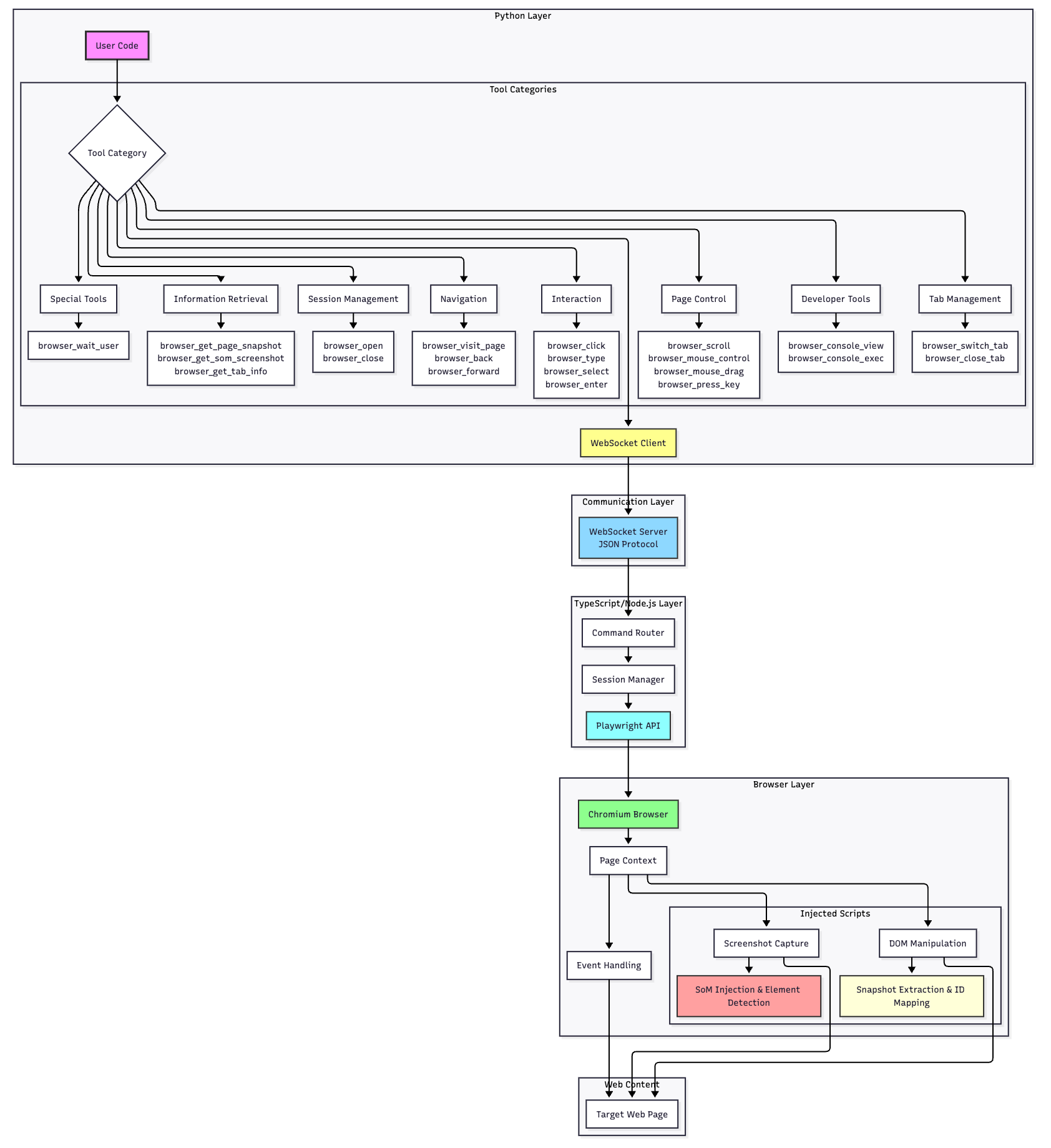
The name "Hybrid" hints at the key change: we combined Python and TypeScript to get the best of both worlds. Instead of one heavy Python process doing everything, we now have a layered architecture where Python and a Node.js (TypeScript) server work together.
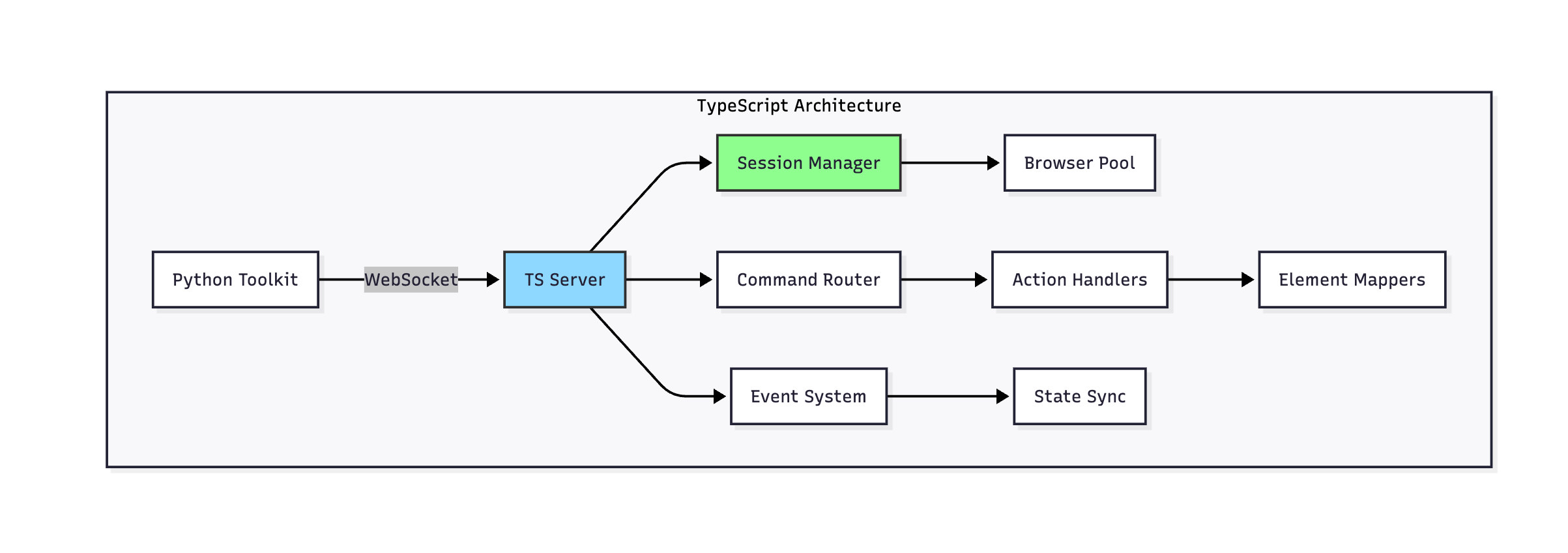
In the hybrid_browser_toolkit architecture, when you issue a command, it goes through a WebSocket to a TypeScript server that is tightly integrated with Playwright's Node.js API. This server manages a pool of browser instances and routes commands asynchronously. Python remains the interface (so you still write Python code to use the toolkit), but the heavy lifting happens in Node.js. Why is this good news? Because direct Node.js calls to Playwright are faster, and Playwright's latest features (like new selectors or the _snapshotForAI function) are fully available to us.
This layered design also makes the system modular. We have:
A Python layer for the API you call and configuration management.
A WebSocket bridge connecting the Python and TypeScript layers.
A TypeScript server layer that acts as the controller (routing commands, managing sessions).
A Browser control layer with controllers for different modes (text, visual, hybrid) and connection types.
The Playwright integration layer where actual browser actions happen with Playwright's Node.js capabilities (including things like _snapshotForAI and ARIA selectors).
In simpler terms, Python is the brain giving high-level instructions, and TypeScript is the brawn executing them efficiently. By splitting responsibilities this way, the toolkit can do more in parallel and handle complicated tasks without getting stuck.
HybridBrowserToolkit Architecture
The HybridBrowserToolkit introduces a modular, multi-layer architecture:
Core Architectural Improvements
1. Multi-Mode Operation System
The HybridBrowserToolkit supports three distinct operating modes:
Text Mode: Pure textual snapshot from _snapshotForAI
Visual Mode: Text snapshot filtered and visualized as SoM screenshot
Hybrid Mode: Intelligent switching between text and visual outputs
2. TypeScript Framework Integration
Advantage
Legacy Python Approach
TypeScript Framework
Benefits
Browser API Integration
Python → JS bridge with overhead
Direct native Playwright API calls
- Lower latency - Better performance - Access to latest features
// Native Playwright ARIA selectorsawaitpage.locator('[aria-label="Submit"]').click()awaitpage.getByRole('button',{name:'Submit'}).click()//_snapshotForAIintegrationconstsnapshot=awaitpage._snapshotForAI();// Returns structured element data with ref mappings
4. _snapshotForAI and ARIA Mapping Mechanism
Pipeline:
_snapshotForAI analyzes the DOM and extracts ARIA properties
Elements are classified by their semantic roles
A unified ref ID system maps to ARIA selectors
The same foundation serves both text and visual modes
Visual mode is built on top of the text snapshot by filtering and adding markers
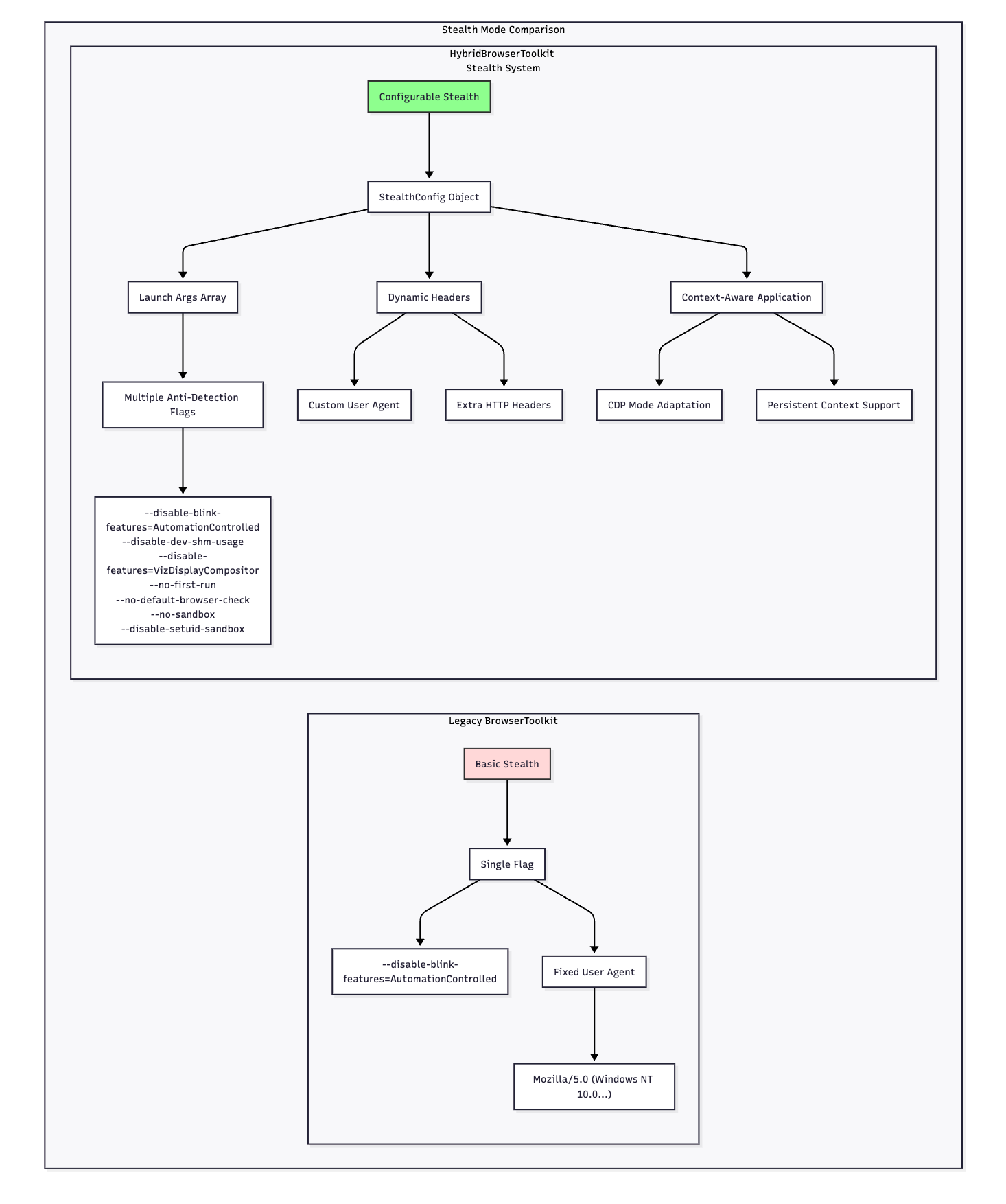
5. Enhanced Stealth Mechanism
Key Stealth Enhancements:
Legacy Approach:
Single flag
Hardcoded user agent string
Applied only during browser launch
No flexibility for different contexts
HybridBrowserToolkit Approach:
Comprehensive Flag Set: Multiple anti-detection browser arguments
Context Adaptation: Different behavior for CDP vs standard launch
Dynamic Headers: Can set custom HTTP headers and user agents
Persistent Context Support: Maintains stealth across sessions
6. Tool Registration and Screenshot Handling
Key Differences from Legacy:
Legacy: Screenshot stored in memory, passed as object
Hybrid: Screenshot saved to disk, agent accesses via file path
Memory Efficiency: Only file path in memory, not entire image
Agent Integration: Uses registered agent pattern for clean separation
7. Form Filling Optimization
New Features:
Multi-input support in single command
Intelligent dropdown detection
Diff snapshot for dynamic content
Error recovery mechanisms
Tools Reference
This chapter provides a comprehensive reference for all tools available in the HybridBrowserToolkit. Each tool is designed for specific browser automation tasks, from basic navigation to complex interactions
Browser Session Management
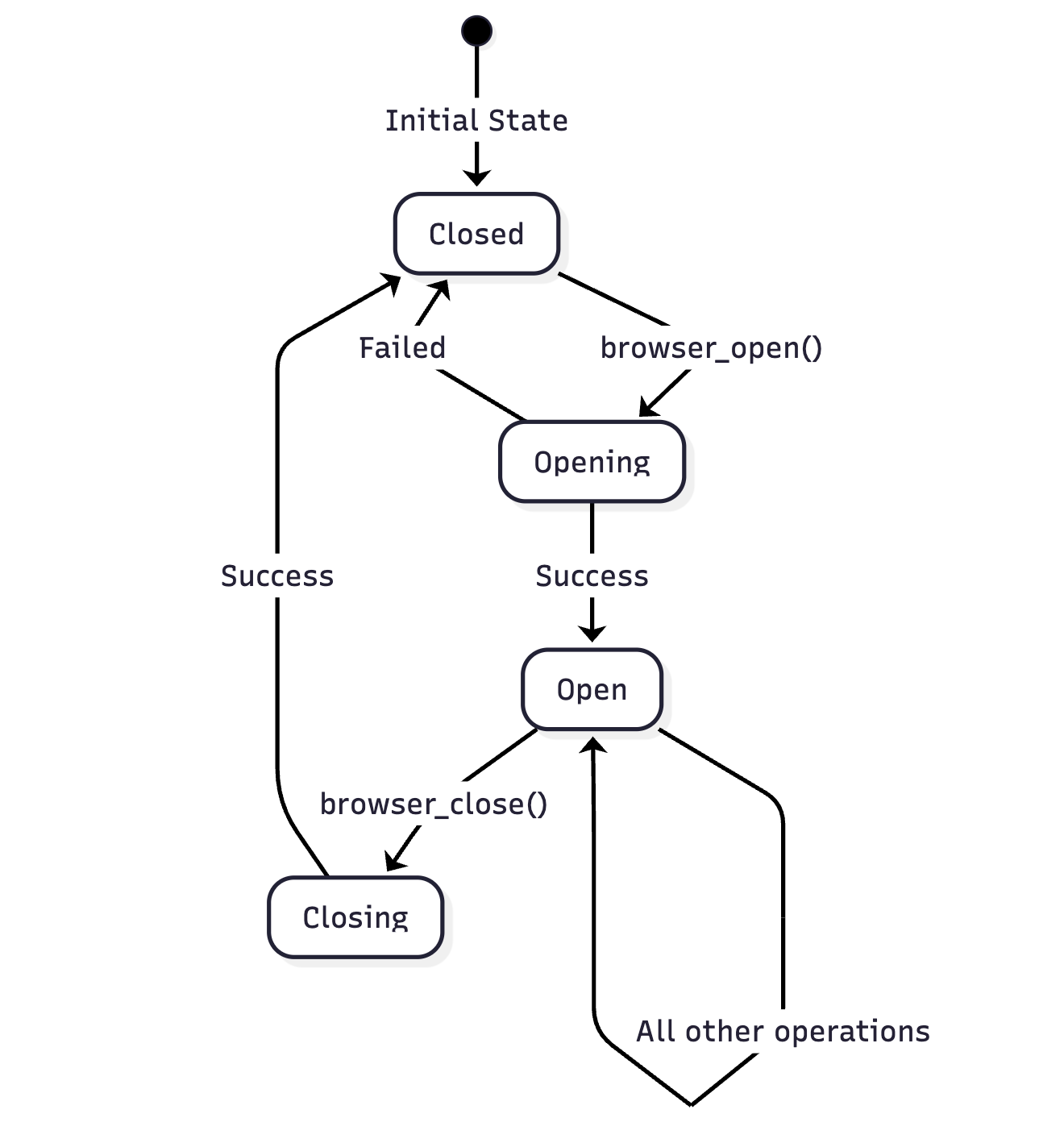
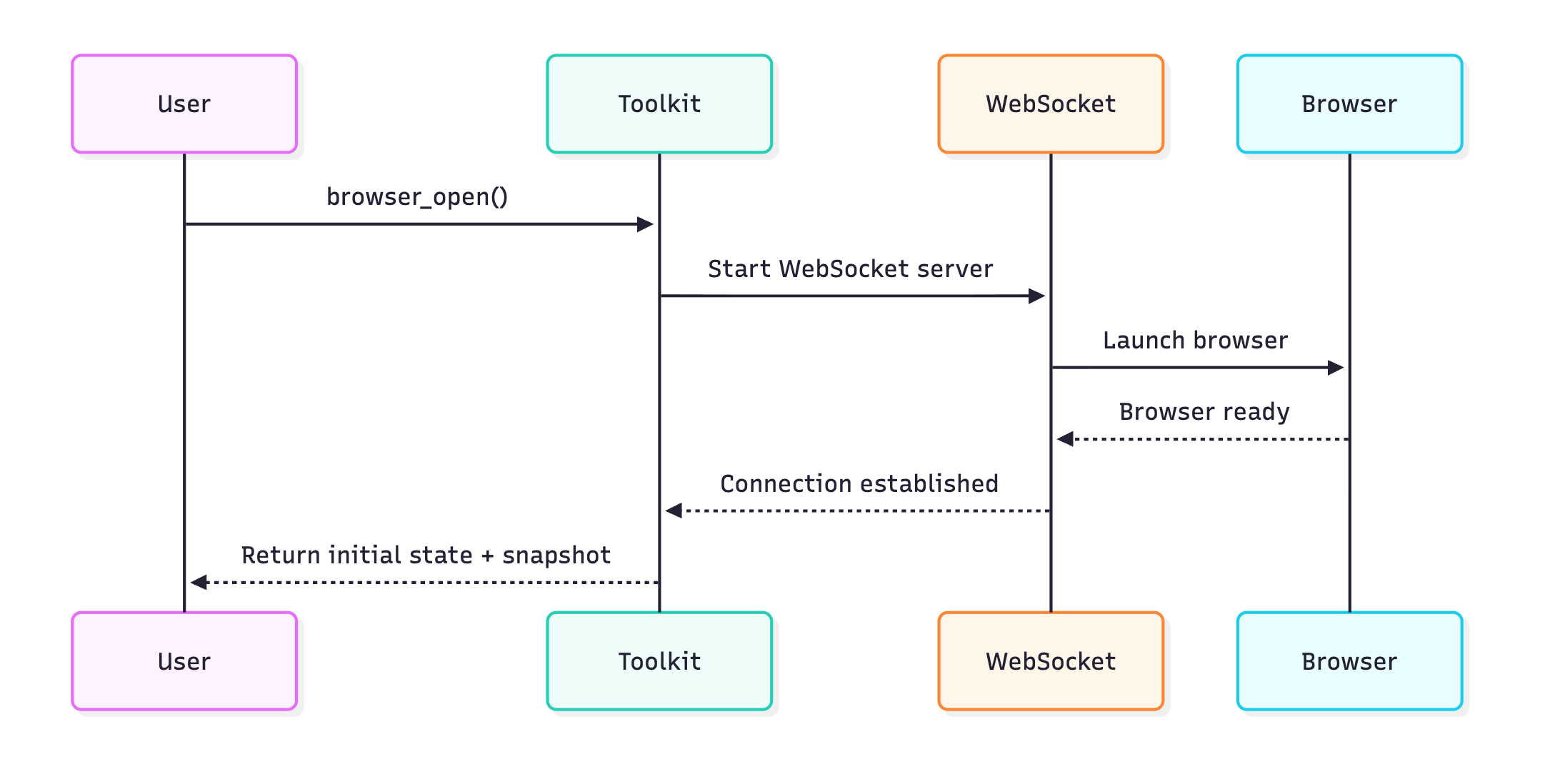
browser_open
Opens a new browser session. This must be the first browser action before any other operations.
Parameters:
None
Returns:
result (str): Confirmation message
snapshot (str): Initial page snapshot (unless in full_visual_mode)
tabs (List[Dict]): Information about all open tabs
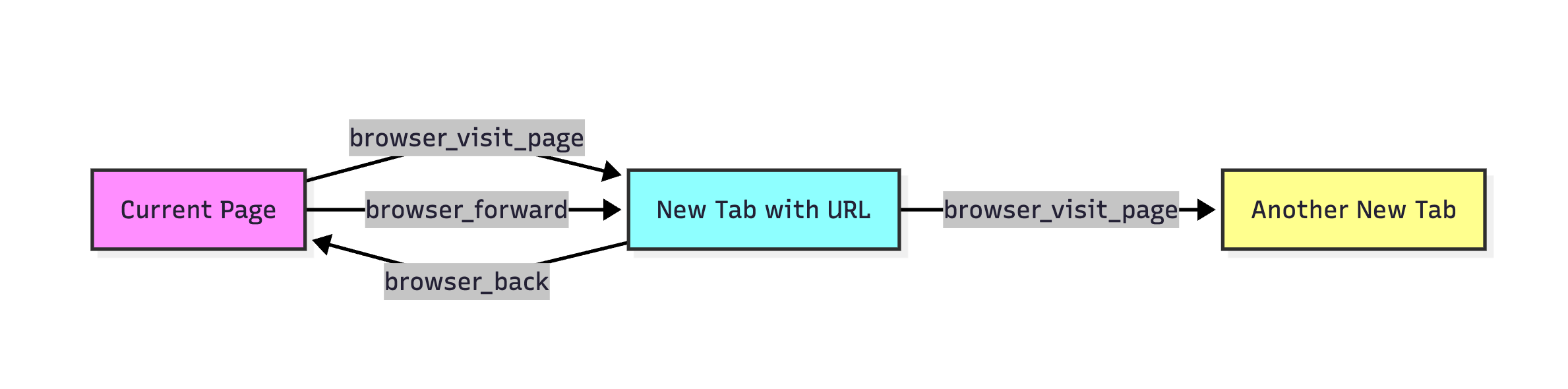
Opens a URL in a new browser tab and switches to it. Creates a new tab each time it’s called.
Parameters:
url (str): The web address to load
Returns:
result (str): Confirmation message
snapshot (str): Page snapshot after navigation
tabs (List[Dict]): Updated tab information
current_tab (int): Index of the new active tab
total_tabs (int): Updated total number of tabs
Example:
#Visitasinglepageresult=awaittoolkit.browser_visit_page("https://example.com")print(f"Navigated to: {result['result']}")print(f"Page elements: {result['snapshot']}")#Visitmultiplepages(createsmultipletabs)sites=["https://github.com","https://google.com","https://stackoverflow.com"]forsiteinsites:result=awaittoolkit.browser_visit_page(site)print(f"Tab {result['current_tab']}: {site}")print(f"Total tabs open: {result['total_tabs']}")
browser_back
Navigates back to the previous page in browser history for the current tab.
Parameters:
None
Returns:
result (str): Confirmation message
snapshot (str): Snapshot of the previous page
tabs (List[Dict]): Current tab information
current_tab (int): Index of active tab
total_tabs (int): Total number of tabs
Example:
#Navigatethroughhistoryawaittoolkit.browser_visit_page("https://example.com")awaittoolkit.browser_visit_page("https://example.com/about")#Gobackresult=awaittoolkit.browser_back()print(f"Navigated back to: {result['result']}")
browser_forward
Navigates forward to the next page in browser history for the current tab.
Parameters:
None
Returns:
Same as browser_back
Example:
#Navigateforwardaftergoingbackawaittoolkit.browser_visit_page("https://example.com")awaittoolkit.browser_back()#Backtohomepage#Goforwardagainresult=awaittoolkit.browser_forward()print(f"Navigated forward to: {result['result']}")
Information Retrieval Tools
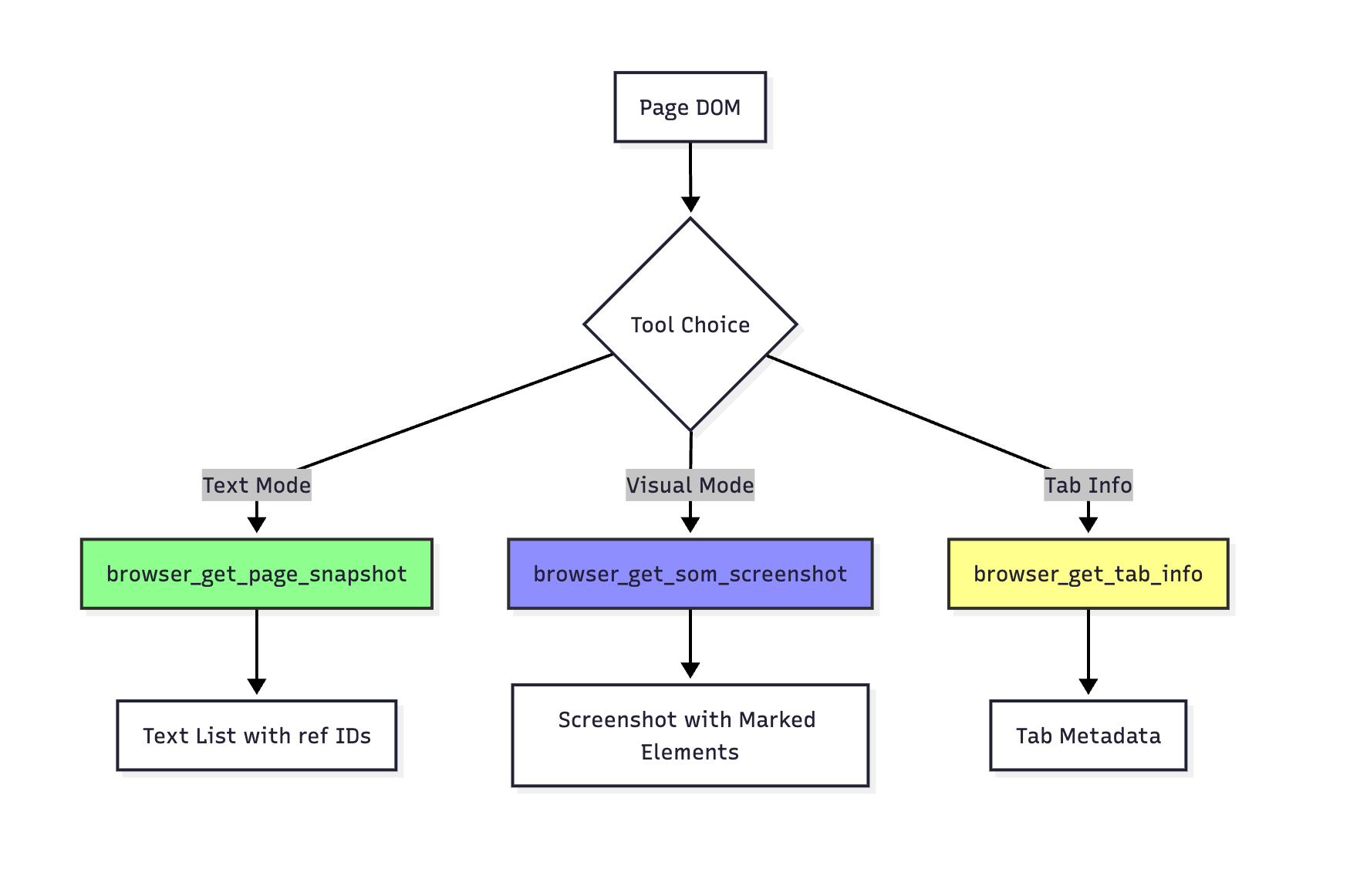
browser_get_page_snapshot
Note: This is a passive tool that must be explicitly called to retrieve page information. It does not trigger any page actions.
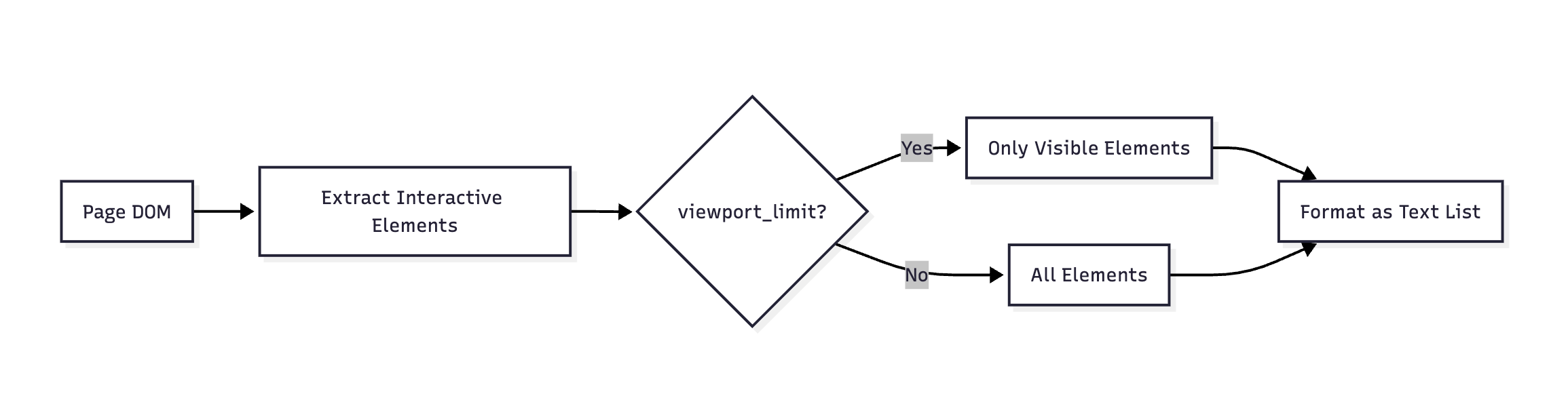
Gets a textual snapshot of all interactive elements on the current page. Each element is assigned a unique ref ID for interaction.
Parameters:
None (uses viewport_limit setting from toolkit initialization)
Returns:
(str): Formatted string listing all interactive elements with their ref IDs
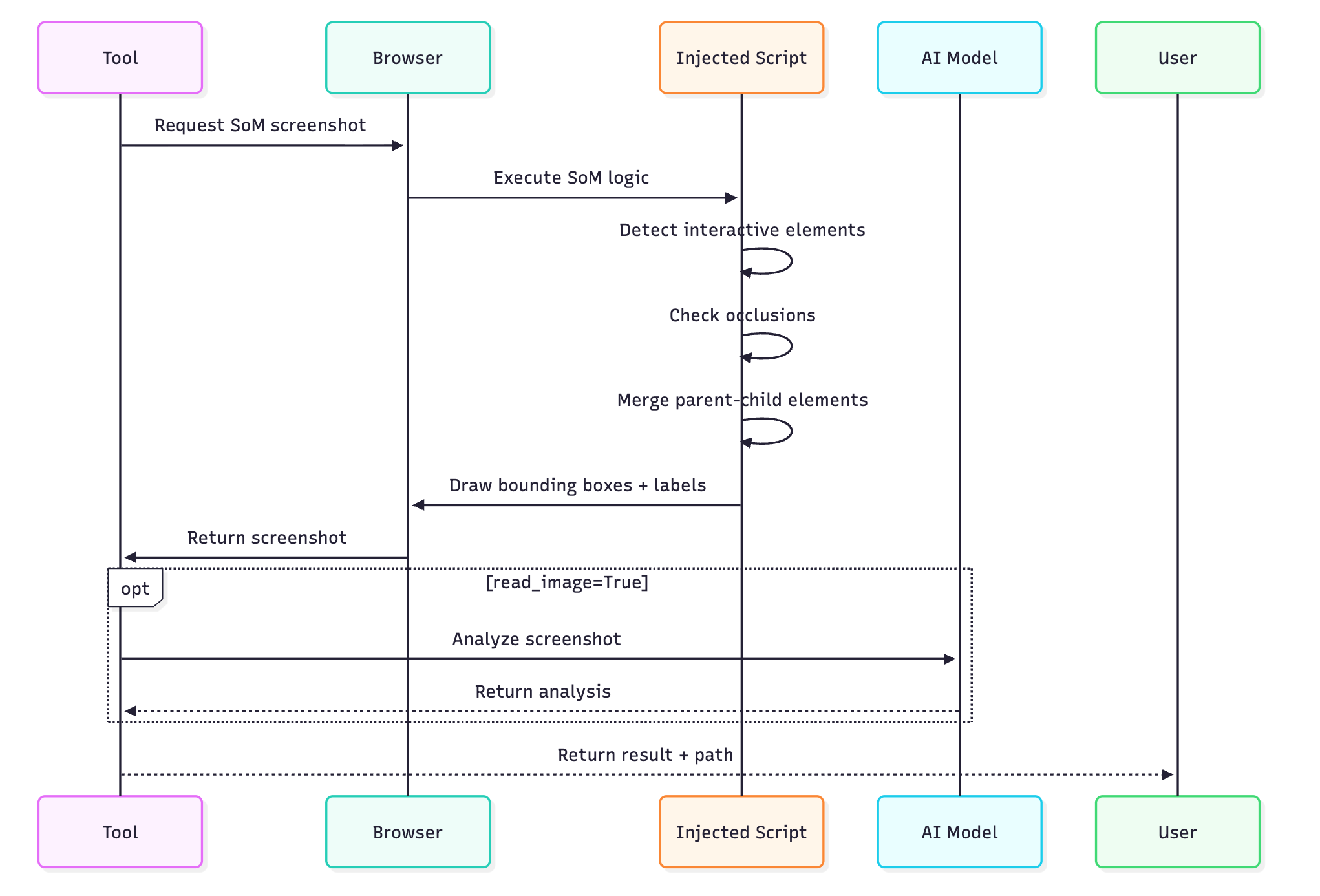
Captures a screenshot with interactive elements highlighted and marked with ref IDs (Set of Marks). This tool uses an advanced injection-based approach with browser-side optimizations for accurate element detection.
Technical Features:
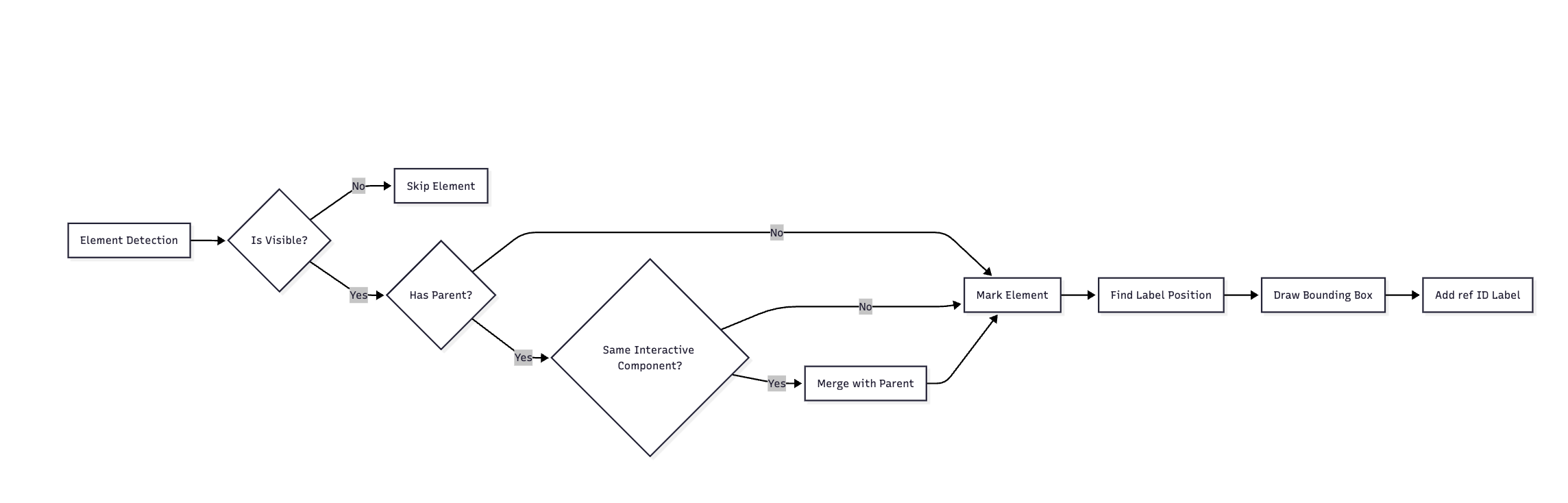
1. Injection-based Implementation: The SoM (Set of Marks) functionality is injected directly into the browser context, ensuring accurate element detection and positioning
Efficient Occlusion Detection: Browser-side algorithms detect when elements are hidden behind other elements, preventing false positives
Parent-Child Element Fusion: Intelligently merges parent and child elements when they represent the same interactive component (e.g., a button containing an icon and text)
Smart Label Positioning: Automatically finds optimal positions for ref ID labels to avoid overlapping with page content
Parameters:
read_image (bool, optional): If True, uses AI to analyze the screenshot. Default: True
instruction (str, optional): Specific guidance for AI analysis
Returns:
(str): Confirmation message with file path and optional AI analysis
Example:
#Basicscreenshotcaptureresult=awaittoolkit.browser_get_som_screenshot(read_image=False)print(result)#"Screenshot captured with 42 interactive elements marked (saved to: ./assets/screenshots/page_123456_som.png)"#WithAIanalysisresult=awaittoolkit.browser_get_som_screenshot(read_image=True,instruction="Find all form input fields")#"Screenshot captured... Agent analysis: Found 5 form fields: username [ref=3], password [ref=4], email [ref=5], phone [ref=6], submit button [ref=7]"#Forvisualverificationresult=awaittoolkit.browser_get_som_screenshot(read_image=True,instruction="Verify the login button is visible and properly styled")#ComplexUIwithoverlappingelementsresult=awaittoolkit.browser_get_som_screenshot(read_image=False)#Thetoolautomaticallyhandles:#-Dropdownmenusthatoverlayothercontent#-Modaldialogs#-Nestedinteractiveelements#-Elementswithtransparency#Parent-childfusionexample#Abuttoncontaininganiconandtextwillbemarkedasoneelement,notthree#<button[ref=5]># <iclass="icon"></i>#<span>Submit</span>#</button>#Willappearassingle"button Submit [ref=5]"insteadofseparateelements
browser_get_tab_info
Note: This is a passive information retrieval tool that provides current tab state without modifying anything.
Gets information about all open browser tabs including titles, URLs, and which tab is active.
Parameters:
None
Returns:
tabs (List[Dict]): List of tab information, each containing:
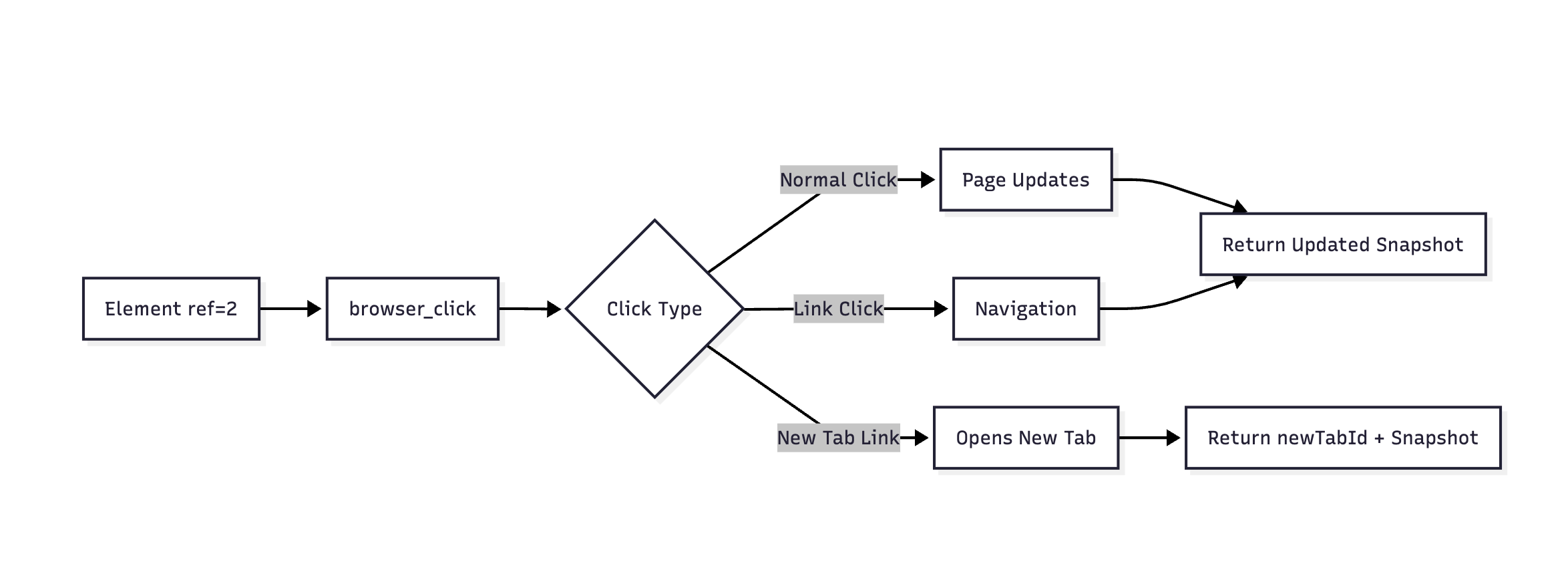
Performs a click action on an element identified by its ref ID.
Parameters:
ref (str): The ref ID of the element to click
Returns:
result (str): Confirmation of the action
snapshot (str): Updated page snapshot after click
tabs (List[Dict]): Current tab information
current_tab (int): Index of active tab
total_tabs (int): Total number of tabs
newTabId (str, optional): ID of newly opened tab if click opened a new tab
Example:
#Simpleclickresult=awaittoolkit.browser_click(ref="2")print(f"Clicked: {result['result']}")#Clickthatopensnewtabresult=awaittoolkit.browser_click(ref="external-link")if'newTabId'inresult:print(f"New tab opened with ID: {result['newTabId']}")#Switchtothenewtabawaittoolkit.browser_switch_tab(tab_id=result['newTabId'])#Clickwitherrorhandlingtry:result=awaittoolkit.browser_click(ref="submit-button")exceptExceptionase:print(f"Click failed: {e}")
browser_type
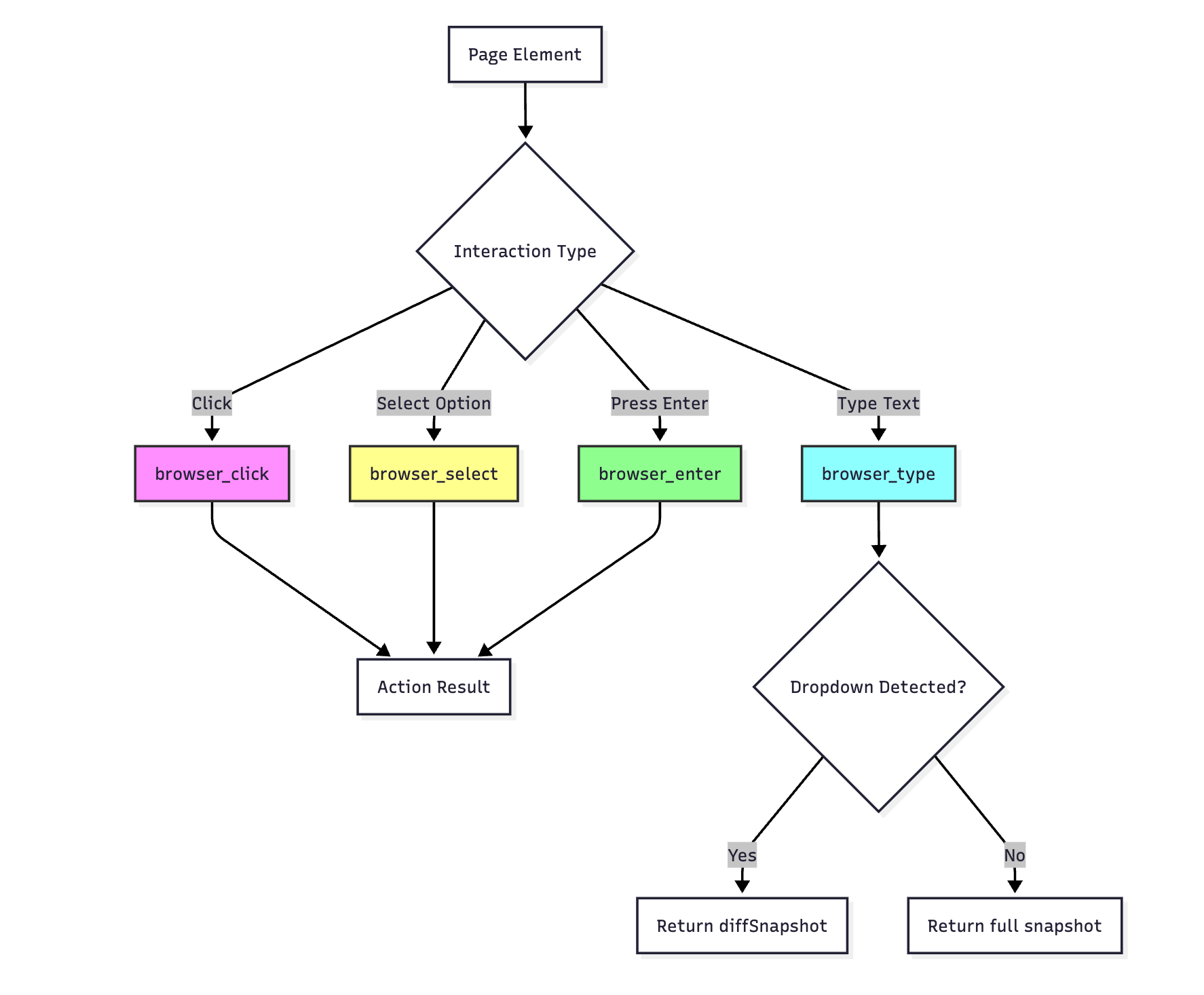
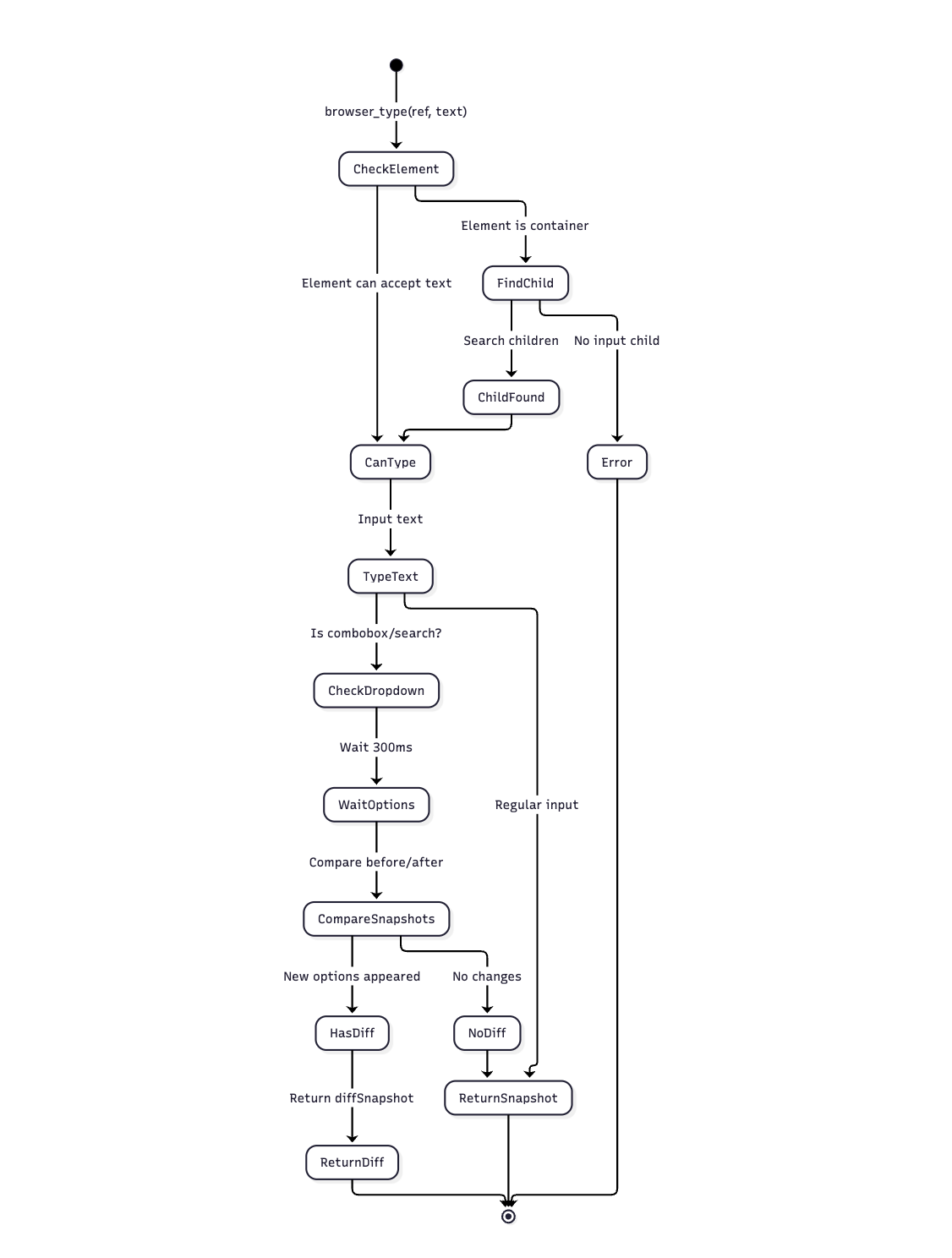
Types text into input elements. Supports both single and multiple inputs with intelligent dropdown detection and automatic child element discovery.
Special Features:
Intelligent Dropdown Detection:
When typing into elements that might trigger dropdown options (such as combobox, search fields, or autocomplete inputs), the tool automatically:
Detects if new options appear after typing
Returns only the newly appeared options via diffSnapshot instead of the full page snapshot
This optimization reduces noise and makes it easier to interact with dynamic dropdowns
Automatic Child Element Discovery:
If the specified ref ID points to a container element that cannot accept text input directly, the tool automatically:
Searches through child elements to find an input field
Attempts to type into the first suitable child input element found
This is particularly useful for complex UI components where the visible element is a wrapper around the actual input
Parameters (Single Input):
ref (str): The ref ID of the input element (or container with input child)
text (str): The text to type
Parameters (Multiple Inputs):
inputs (List[Dict[str, str]]): List of dictionaries with ‘ref’ and ‘text’ keys
Returns:
result (str): Confirmation message
snapshot (str): Updated page snapshot (full snapshot for regular inputs)
diffSnapshot (str, optional): For dropdowns, shows only newly appeared options
details (Dict, optional): For multiple inputs, success/error status for each
Tab information fields
Example:
#Singleinputresult=awaittoolkit.browser_type(ref="3",text="john.doe@example.com")#Handledropdown/autocompletewithintelligentdetectionresult=awaittoolkit.browser_type(ref="search",text="laptop")if'diffSnapshot'inresult:print("Dropdown options appeared:")print(result['diffSnapshot'])#Exampleoutput:#-option"Laptop Computers"[ref=45]#-option"Laptop Bags"[ref=46]#-option"Laptop Accessories"[ref=47]#Clickononeoftheoptionsawaittoolkit.browser_click(ref="45")else:#Nodropdownappeared,continuewithregularsnapshotprint("Page snapshot:",result['snapshot'])#Autocompleteexamplewithdiffdetectionresult=awaittoolkit.browser_type(ref="city-input",text="San")if'diffSnapshot'inresult:#Onlyshowsnewlyappearedsuggestionsprint("City suggestions:")print(result['diffSnapshot'])#-option"San Francisco"[ref=23]#-option"San Diego"[ref=24]#-option"San Antonio"[ref=25]#Multipleinputsatonceinputs=[{'ref':'3','text':'username123'},{'ref':'4','text':'SecurePass123!'},{'ref':'5','text':'john.doe@example.com'}]result=awaittoolkit.browser_type(inputs=inputs)print(result['details'])#Success/failureforeachinput#Clearandtypeawaittoolkit.browser_click(ref="3")#Focusawaittoolkit.browser_press_key(keys=["Control+a"])#Selectallawaittoolkit.browser_type(ref="3",text="new_value")#Replacescontent#Workingwithcomboboxelementsasyncdefhandle_searchable_dropdown():#Typetosearch/filteroptionsresult=awaittoolkit.browser_type(ref="country-select",text="United")if'diffSnapshot'inresult:#Showsonlycountriescontaining"United"print("Filtered countries:",result['diffSnapshot'])#-option"United States"[ref=87]#-option"United Kingdom"[ref=88]#-option"United Arab Emirates"[ref=89]#Selectoneofthefilteredoptionsawaittoolkit.browser_click(ref="87")#Automaticchildelementdiscovery#Whentherefpointstoacontainer,browser_typefindstheinputchildresult=awaittoolkit.browser_type(ref="search-container",text="product name")#Eventhoughref="search-container"mightbea<div>, the tool will find# and type into the actual <input> element inside it# Complex UI component example# The visible element might be a styled wrapperresult = await toolkit.browser_type(ref="styled-date-picker", text="2024-03-15")# Tool automatically finds the actual input field within the date picker component